
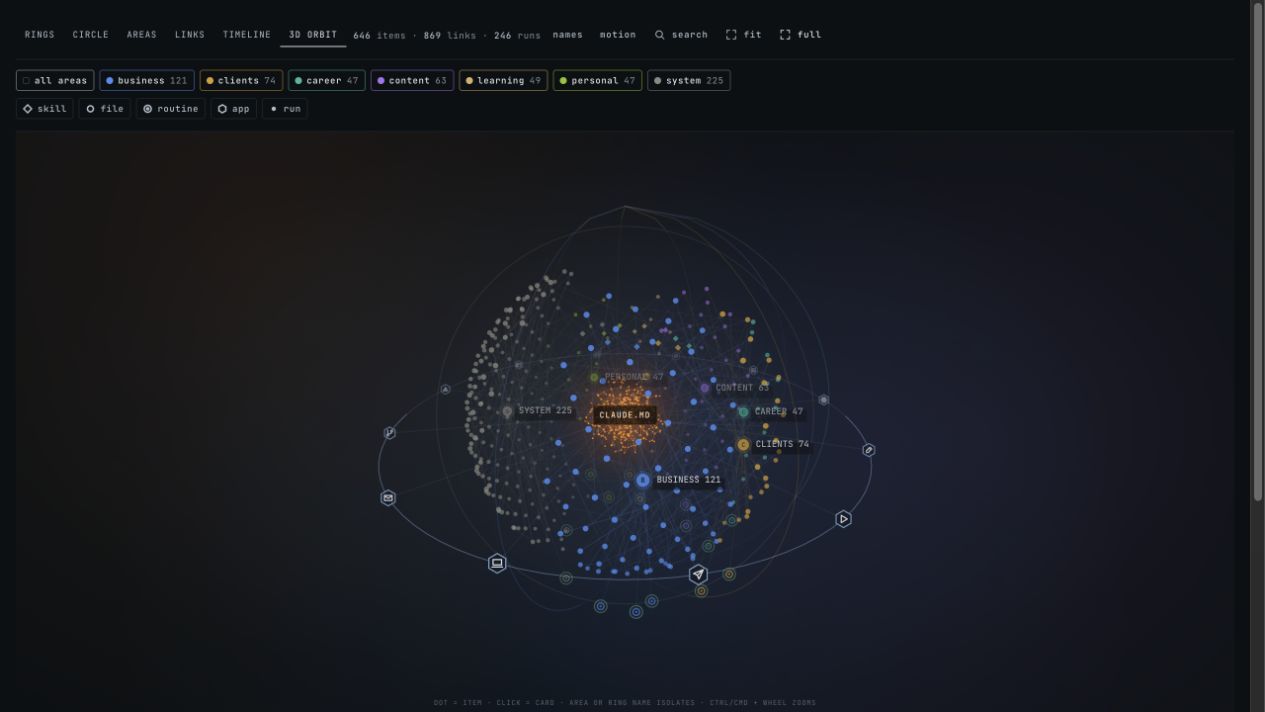
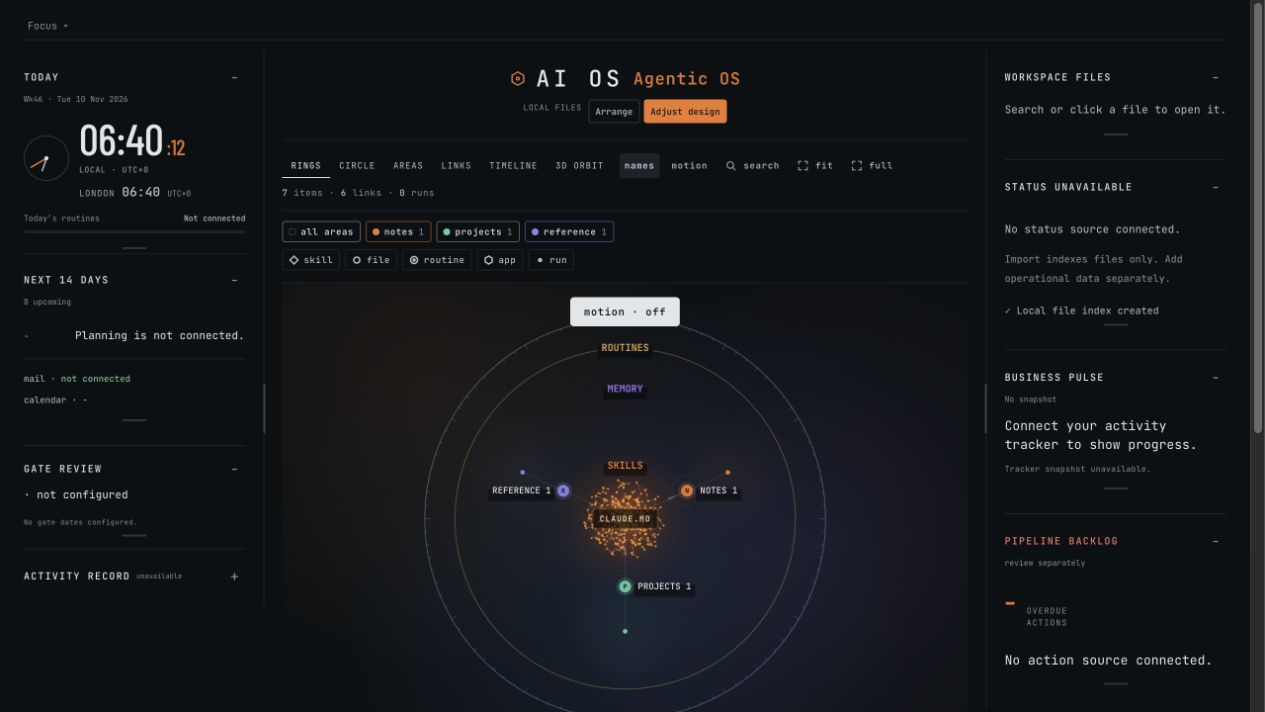
You can import Markdown into AI OS Current 1.1.1 with the included setup.py --workspace command. It builds a local index of eligible .md and .txt files. You can then search the graph and read a selected file in the dashboard.
This is the visual interface layer of an AI operating system workspace. The import groups files by their top-level folders. It does not infer semantic relationships or connect an AI agent, voice assistant or automation runner.
Get the dashboard ready.
Use the Current 1.1.1 download from the Builder Start Here post. Extract the ZIP into a new folder and keep the whole package together. This guide follows Current, not the separate Classic 1.0.4 design.
Open a terminal inside the extracted dashboard folder. On macOS, type cd , drag that folder from Finder into Terminal and press Return. On Windows, open the folder in File Explorer, type powershell in its address bar and press Enter.
macOS · Terminal
python3 --version
python3 setup.py --check-only
python3 setup.py
Windows · PowerShell
py -3 --version
py -3 setup.py --check-only
py -3 setup.py
The version check must report 3.11 or newer. Verification should say Package verified. The launcher opens the dashboard or prints a local address beginning http://127.0.0.1:. Keep the terminal open while using it. Open that address, not index.html directly. Keep this server local; this walkthrough does not require port forwarding or a public tunnel.
Need Python? Install it from python.org, then reopen your terminal. If Windows has no py -3 command but python --version reports 3.11+, use python instead. Linux instructions are included in the package, but Linux installation has not been verified.
Start with a small example.
Download the free sample folder and extract it somewhere outside the dashboard folder. It contains only these three fictional Markdown notes:
sample-project/
├── projects/
│   └── launch/
│       └── brief.md
├── notes/
│   └── meeting.md
└── reference/
    └── checklist.md
The sample ZIP is free. It contains text files, not the paid dashboard application. Keep the extracted sample-project folder in place: the dashboard reads the original files when you open them.
What is inside brief.md?
# Fictional launch project

Goal: prepare a short product walkthrough.

Next: draft the outline and choose a demonstration.Point AI OS at that folder.
Stop the running dashboard with Ctrl + C in its terminal. Stay in the dashboard folder. Run the command below, replacing the example path with the full path to your extracted sample-project folder. Keep the quotes around paths with spaces.
macOS · Terminal
python3 setup.py --workspace "/full/path/to/sample-project"Windows · PowerShell
py -3 setup.py --workspace 'C:\full\path\to\sample-project'Indexed 3 text files in 3 folders.
No source files were changed.The dashboard opens in LOCAL FILES mode. This example produces 7 graph items and 6 links: one workspace root, three top-level folder groups and three files. Those are structural links, not AI-generated connections between ideas.
Already have an imported workspace? Use a separate clean extraction for this walkthrough. Reimporting replaces the file index in that package; it does not merge two workspaces. Your source notes remain in their original folder.
Find one note. Open it.
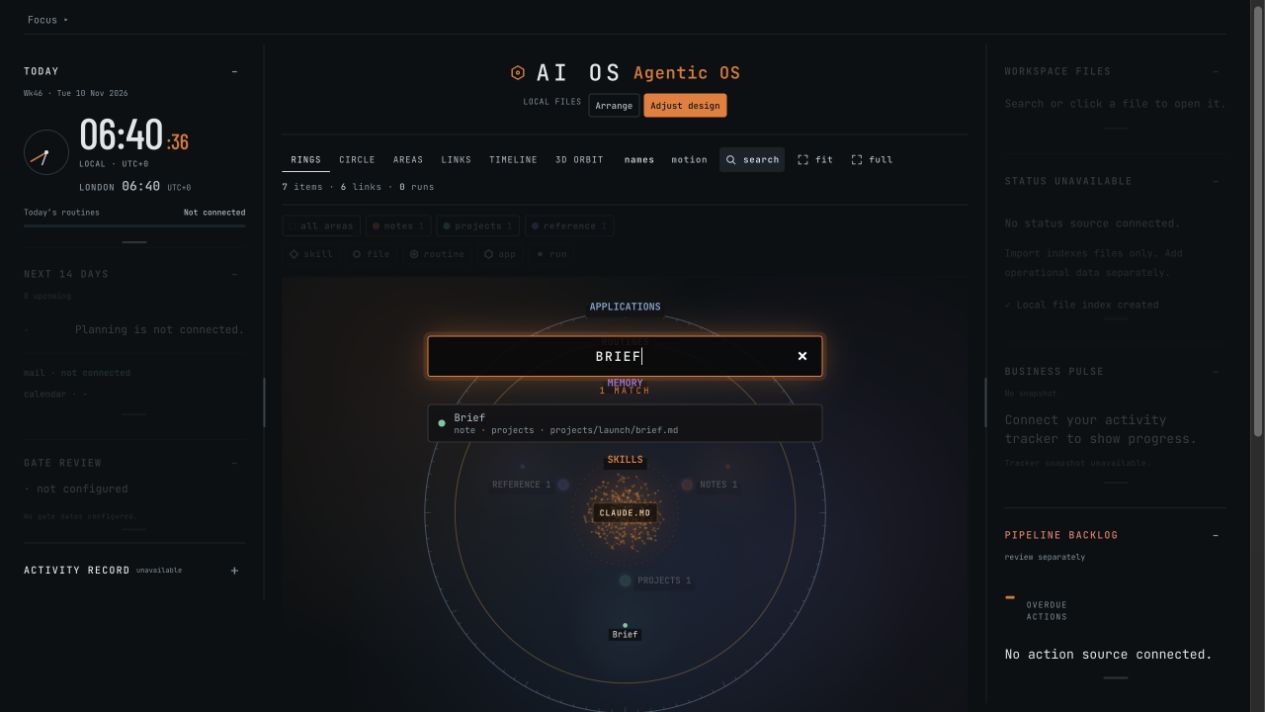
In the graph toolbar, click search and type brief. Select the result named Brief with path projects/launch/brief.md. This search finds indexed file information; it is not an AI question-answering box.
Its file card appears. Click OPEN to read the text. You should see the heading # Fictional launch project and the walkthrough goal below it.
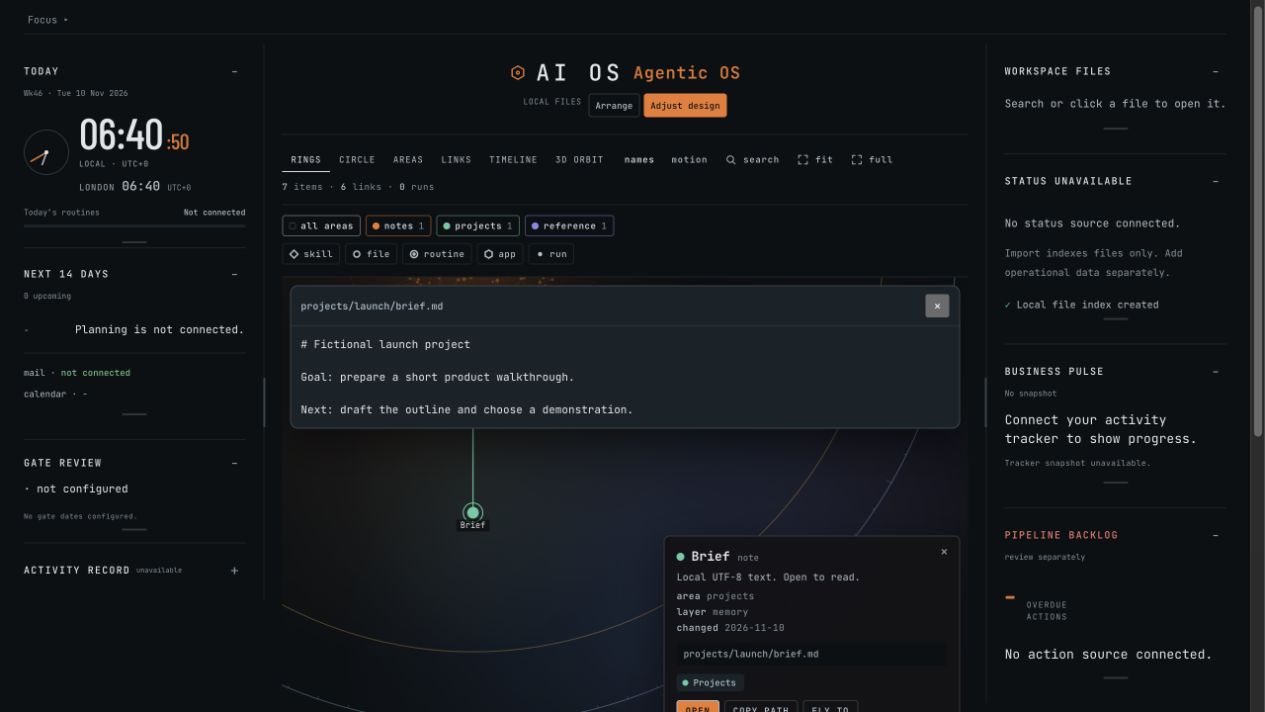
You have imported a folder, found a file and read its contents inside AI OS. Repeat with a small folder of your own notes when you are ready.
Come back. Keep it current.
To reopen the same imported index later, run this from the dashboard folder:
macOS · Terminal
python3 setup.py --userWindows · PowerShell
py -3 setup.py --userWhen you add, rename or remove source files, stop the server and repeat the --workspace command with the same folder path. Reopen or refresh the browser. The index is manual, not continuously synchronised. Existing custom panels are preserved during reimport and may still show their previous counters. Check newly imported files through the graph and search.
The importer accepts up to 2,000 UTF-8 Markdown/text files, each at most 256 KB. Start small. The chosen source path is stored in the dashboard's data/user/source.json, so keep an imported package private. Do not post your notes, paths or credentials in support screenshots.
If you already use MAPS, you can explicitly choose that folder once the sample works. Use this package's existing interface: the free MAPS guide's Cards 4 and 5 build a screen from scratch and should not be applied over your downloaded dashboard.
A FEW QUICK CHECKS
If something looks wrong.
I still see the fictional demo instead of my files.
Stop the server and launch with --user after a successful import. A plain setup.py launch opens sample mode. Use the local address printed by the launcher and refresh the browser.
The import found zero files.
Choose the extracted folder, not the ZIP. Check that it contains UTF-8 .md or .txt files within the size limit. PDFs, Word documents and images are not indexed by this importer. Use the supplied sample to check the path first.
Verification reports a mismatch.
Stop and keep your existing folder. Extract the original trusted Current ZIP into a new folder and verify that clean copy. Do not overwrite an established dashboard or bypass checks just to follow this guide. The package's START-HERE and TROUBLESHOOTING files explain intentional customisations.
Today, calendar and activity panels are empty.
That is expected in imported mode. The importer builds a file graph. It does not connect a calendar, run routines or create live operational data. The connected mobile, voice and chat system shown in my videos is separate from the released Builder downloads.
Can I use a local coding agent to help?
Yes. Follow the included INSTALL-WITH-AGENT.md with a local agent that has access to your downloaded package. Review the folder it will import. Manual setup needs no AI account or API key; optional agent assistance uses the agent's own account and permissions.
Checked on 10 November 2026 using the published Current 1.1.1 archive: package verification, three-file import, browser search and OPEN. Source-file hashes remained unchanged. Screenshots use fictional data. The release also has prior Windows x64 VM checks; this walkthrough was rerun on macOS.
The method is free.
The interface is ready.
Builder includes the released Current and Classic dashboard interfaces, editable source, sample data and setup instructions. Bring your own Markdown folder and make the workspace your own.
Get the dashboards with Builder ↗$15/month on Patreon · New releases as published
Connected mobile, voice and chat are not included.